
Mobile Printing on Phone
Step 1:
Open your App Store or Play Store app.

Step 2:
In the search bar, type "SPOT Global." Download the app to your phone.

Step 3:
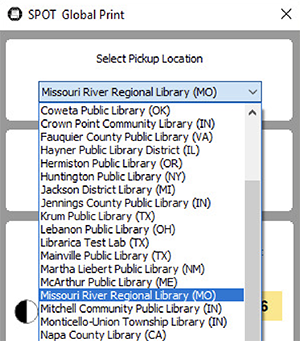
Once the app is installed, open it and select "Missouri River Regional Library" from the list of libraries, and your printer from the list below that.
Select "LAB-PRINTER" for the printer in the computer lab, or "MAIN-COPIER" for the printer on the main floor.
Step Four:
Go back to the document you want printed and proceed as normal, choosing "LAB-PRINTER" or "MAIN-COPIER" as your printer and selecting how many copies you want, what color, etc. Print document.
Step Five:
When you are ready to get your print, go to one of the staff desks to pay for your prints and staff will release your print to the appropriate printer.
Please ask the main floor desk for prints sent to "MAIN-COPIER" and the computer lab desk for those sent to "LAB-PRINTER."
Mobile Printing on Laptop
Step 1:
Open your preferred internet browser (Chrome, Firefox, Edge, or Safari).

Step 2:
In the URL bar, type https://libraricacloud.com/apps.html.
Step 3:
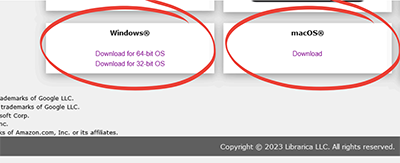
Click on the link to download the SPOT Global app that is compatible with your device.
Step 4:
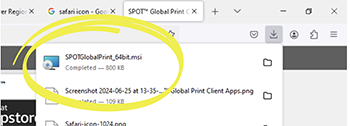
Click on the downloaded file to begin installing SPOT Global on your device.
You may have to "allow" the app to make changes to your device.
Follow the instructions for downloading the app. You may have to hit "next" several times on the installation wizard, then finish.
Step 5:
Once the app is installed, open it and select "Missouri River Regional Library" from the list of libraries, and your printer from the list below that.
Select "LAB-PRINTER" for the printer in the computer lab, or "MAIN-COPIER" for the printer on the main floor.
Step 6:
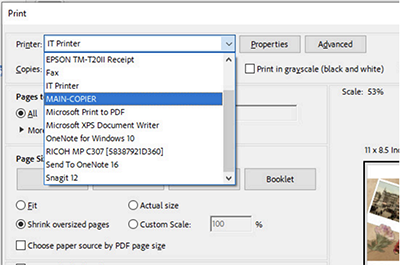
Go back to the document you want printed and proceed as normal, choosing "LAB-PRINTER" or "MAIN-COPIER" as your printer and selecting how many copies you want, what color, etc. Print document.
Step 7:
When you are ready to get your print, go to one of the staff desks to pay for your prints and staff will release your print to the appropriate printer.
Please ask the main floor desk for prints sent to "MAIN-COPIER" and the computer lab desk for those sent to "LAB-PRINTER."
Note: You can also use this app from home or on the go. Just make sure you pick up your print from the library less than 8 hours after you hit "Print"!